22/12/2025
Share:

Starting from November 7, 2025, Guotai Junan Securities (Vietnam) officially launches the Fund Certificate (FC) trading feature on the GTJAS Mobile App.
To support customers during the usage process, Guotai Junan (Vietnam) respectfully invites valued clients to refer to the guidelines for purchasing Fund Certificates under different scenarios. This document is designed to ensure that clients can quickly, fully, and accurately understand the trading procedures.
1. Instructions for downloading the GTJAS Mobile App
(For customers who have not yet installed the trading application)
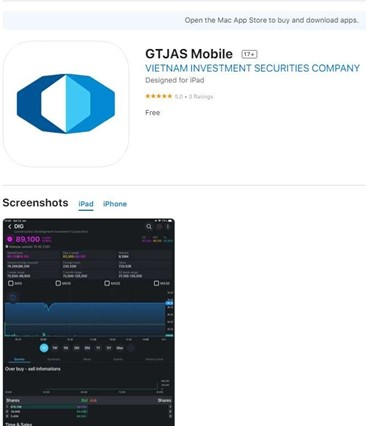 |
Step 1: Go to the App Store or CH Play and search for “GTJAS Mobile”. Step 2: Tap “Download” to install the application. Step 3: Once the installation is complete, tap the GTJAS Mobile app icon to open the application. * Note: Please select “Allow” when prompted to enable notifications. This allows the app to send important alerts such as balance changes, order execution notifications, and other updates. |
2. Instructions for opening a trading account
(For customers who do not yet have a trading account with GTJA)
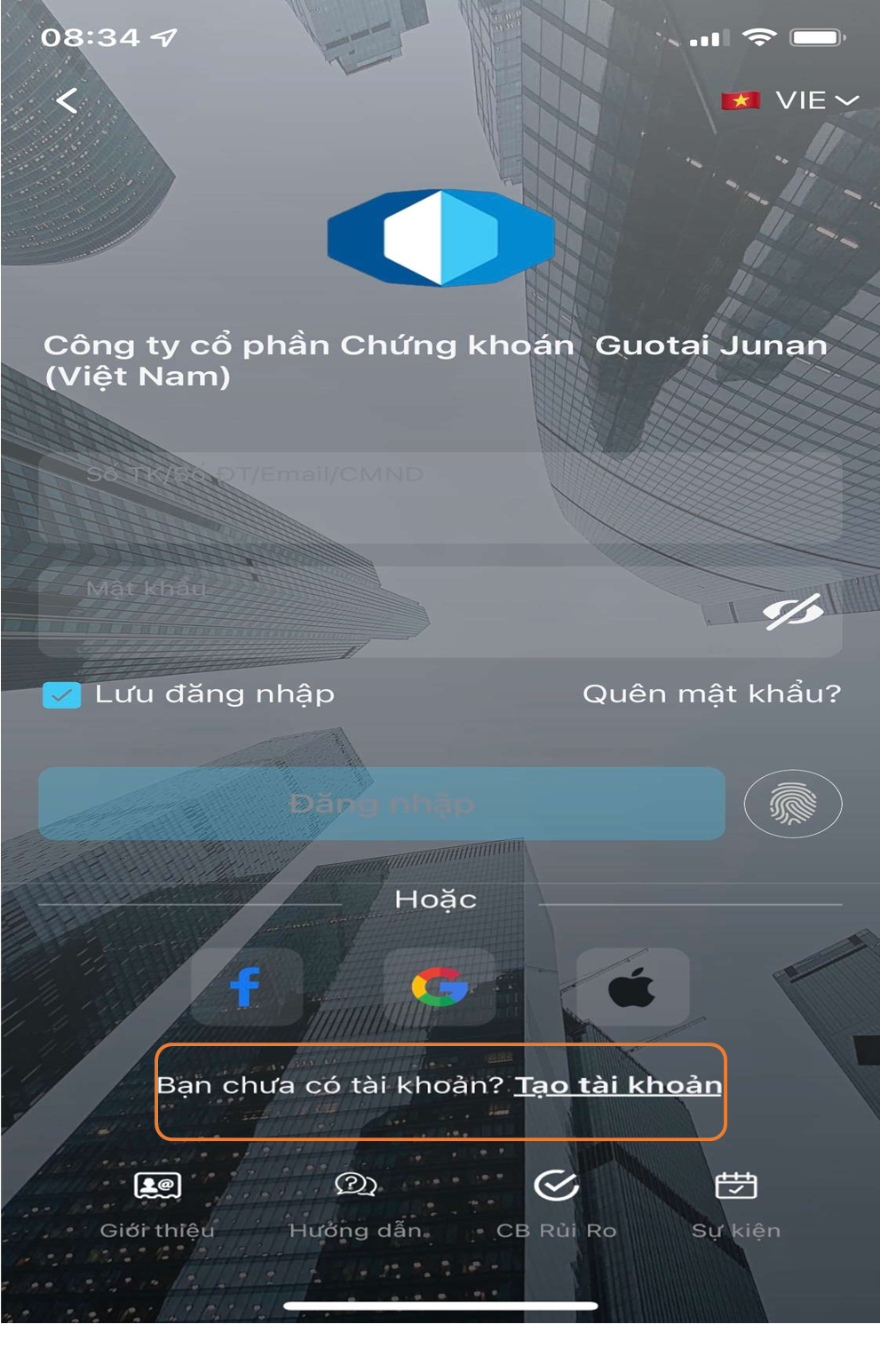 |
Step 1: Open the application. Select “Services”, then choose “Log in”. The screen will appear as shown on the side. Step 2: Tap “Create Account” to proceed with opening a new trading account. |
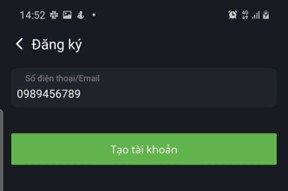 |
Step 3: Enter your registered phone number or email address, then select “Create Account.” The system will send a One-Time Password (OTP) to the registered phone number or email address. |
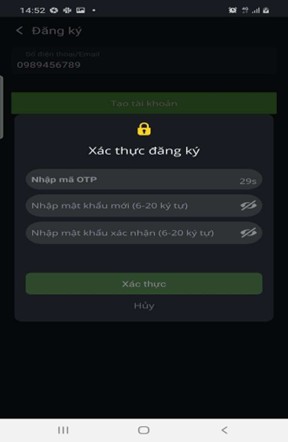 |
Step 4: Within 5-10 seconds, you will receive an OTP message sent by GTJA. Please enter the OTP into the designated field on the application to verify your account, then set a password for your account. |
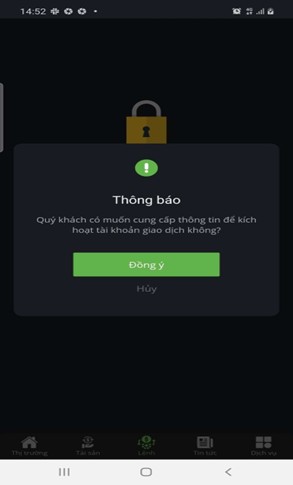 |
Step 5: The system will ask, “Would you like to provide information to activate your trading account?” Please select “Agree” to continue. |
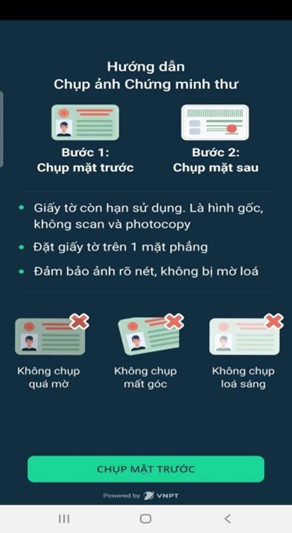 |
Step 6: Carefully read the instructions and prepare the required documents for verification. |
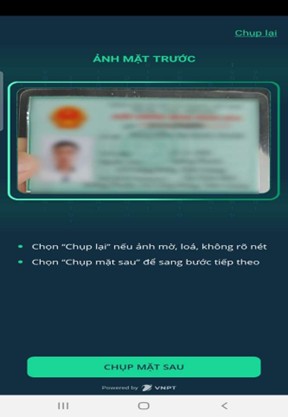 |
Step 7: Follow the instructions to verify the front side of your identification document. |
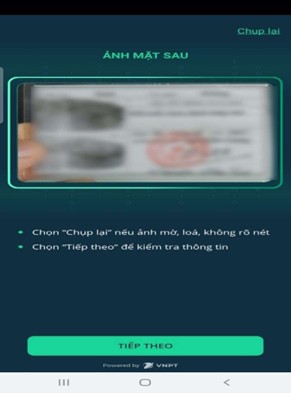 |
Step 8: Follow the instructions to verify the back side of your identification document. |
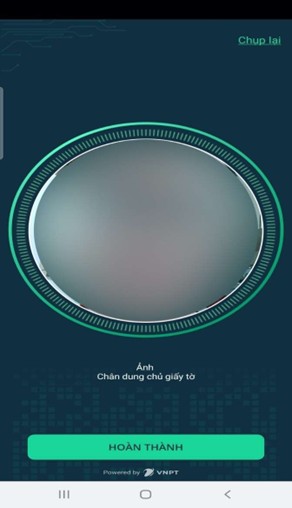 |
Step 9: Follow the instructions to complete facial verification. |
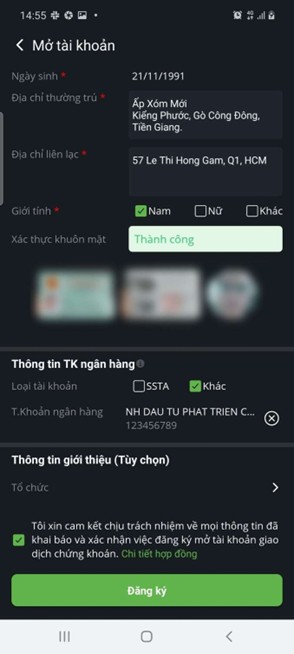 |
Step 10: Once the biometric verification is completed, the system will display a “Successful” notification. At this final step, please ensure that you complete all required information, including: – Email: The system will send the account opening agreement to this email address. * Note: You will receive a notification of the result within 3-5 seconds after submission. |
3. Hướng dẫn giao dịch CCQ
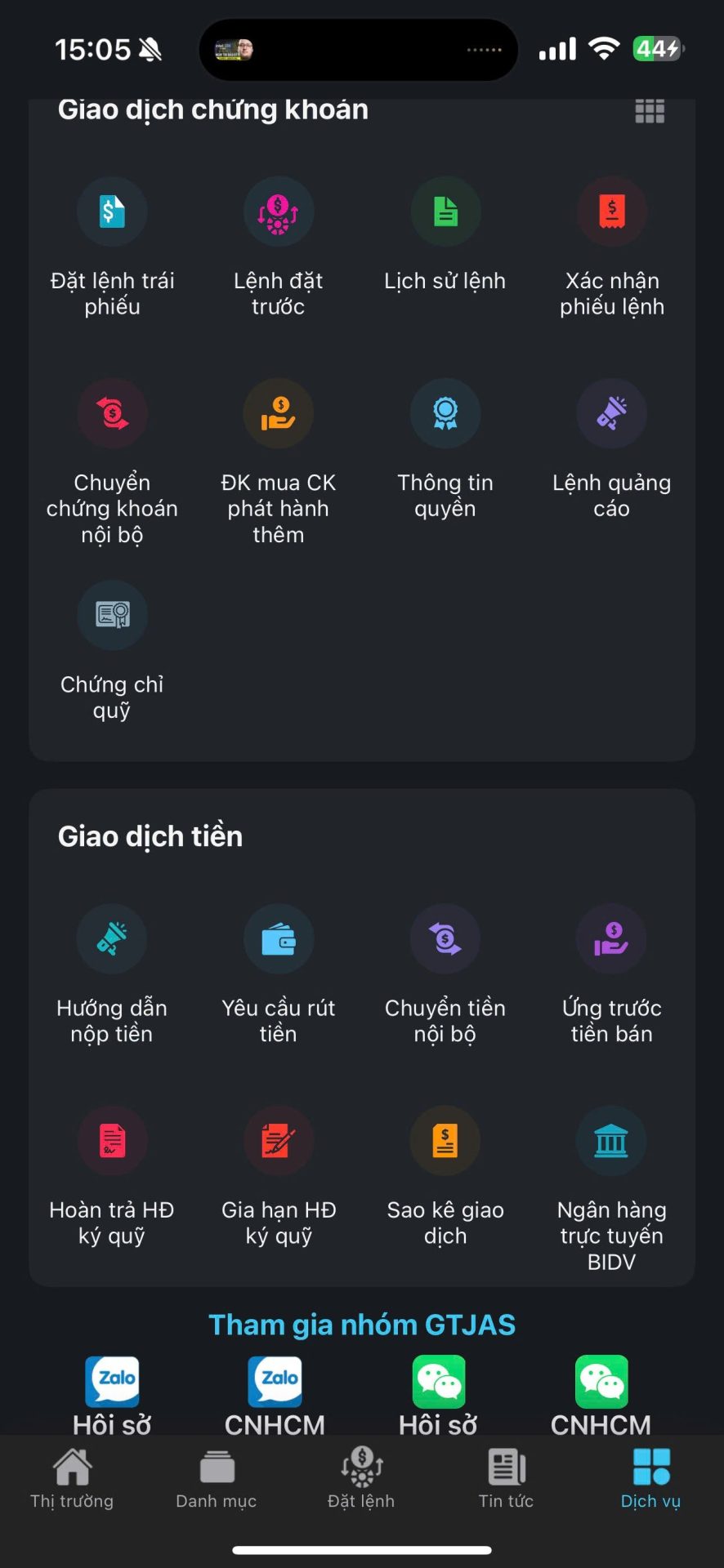 |
Step 1: Log in to the GTJAS App, then select “Internal Transfer.” |
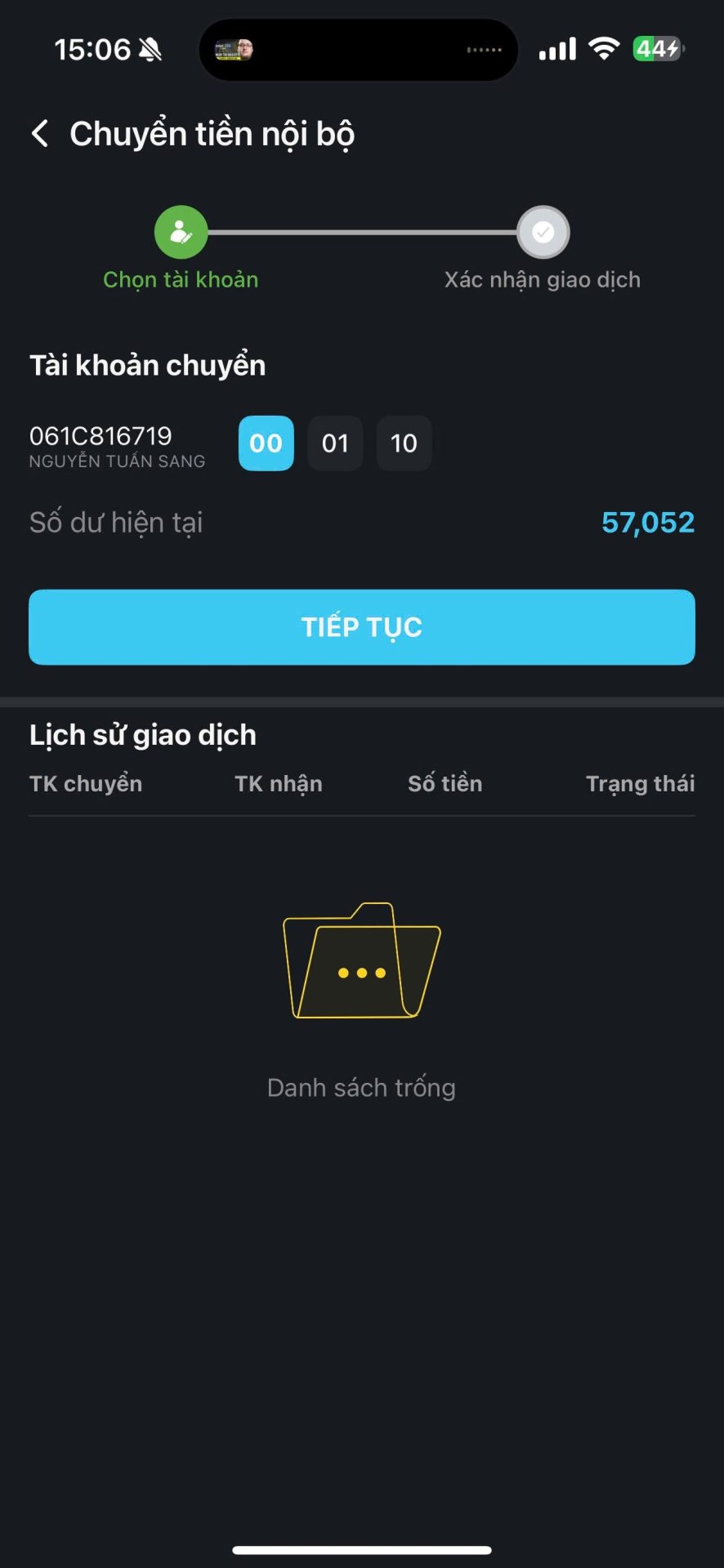 |
Step 2: Select account “00” as the transferring account, then choose “Continue.” |
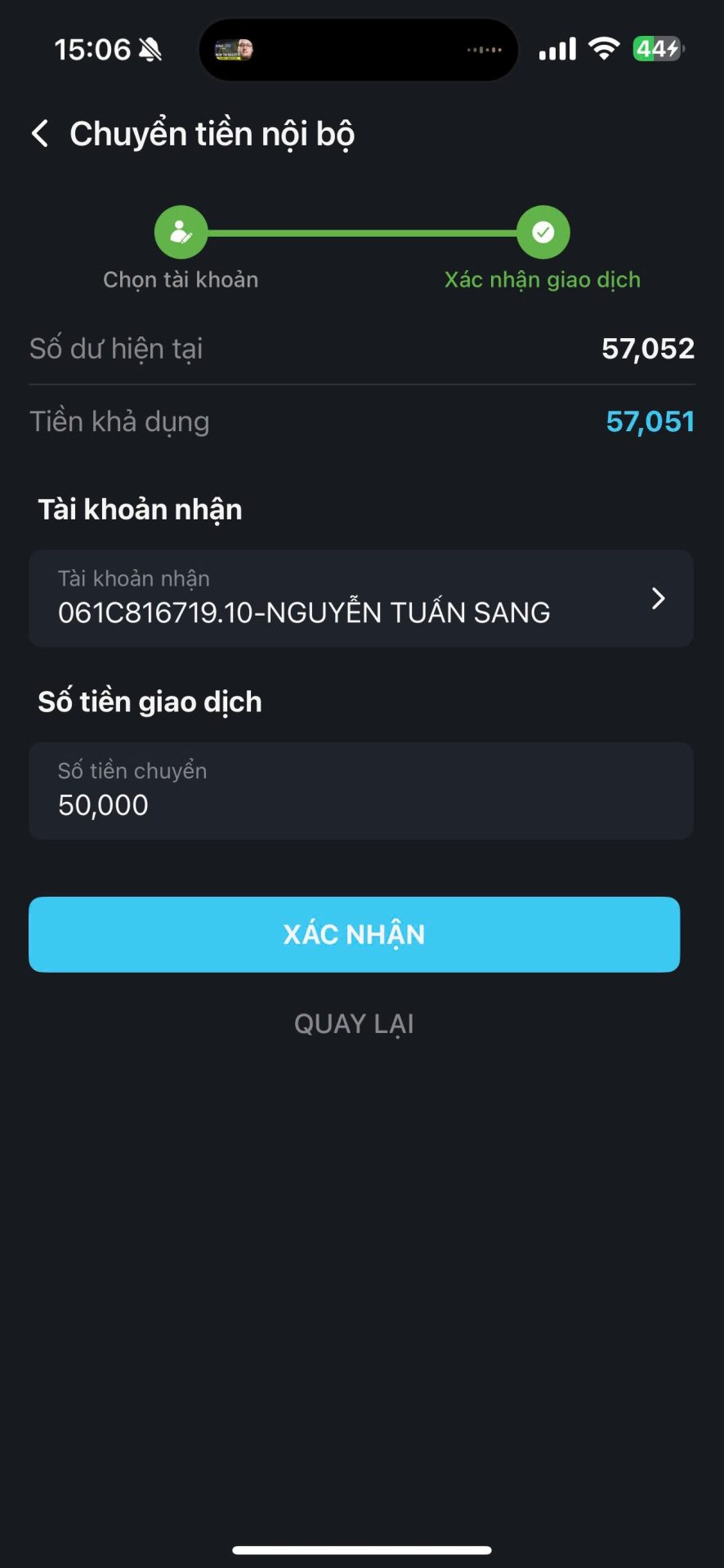 |
Step 3: Select the receiving account with the “.10” suffix, enter the amount to be transferred, then select “Confirm.” |
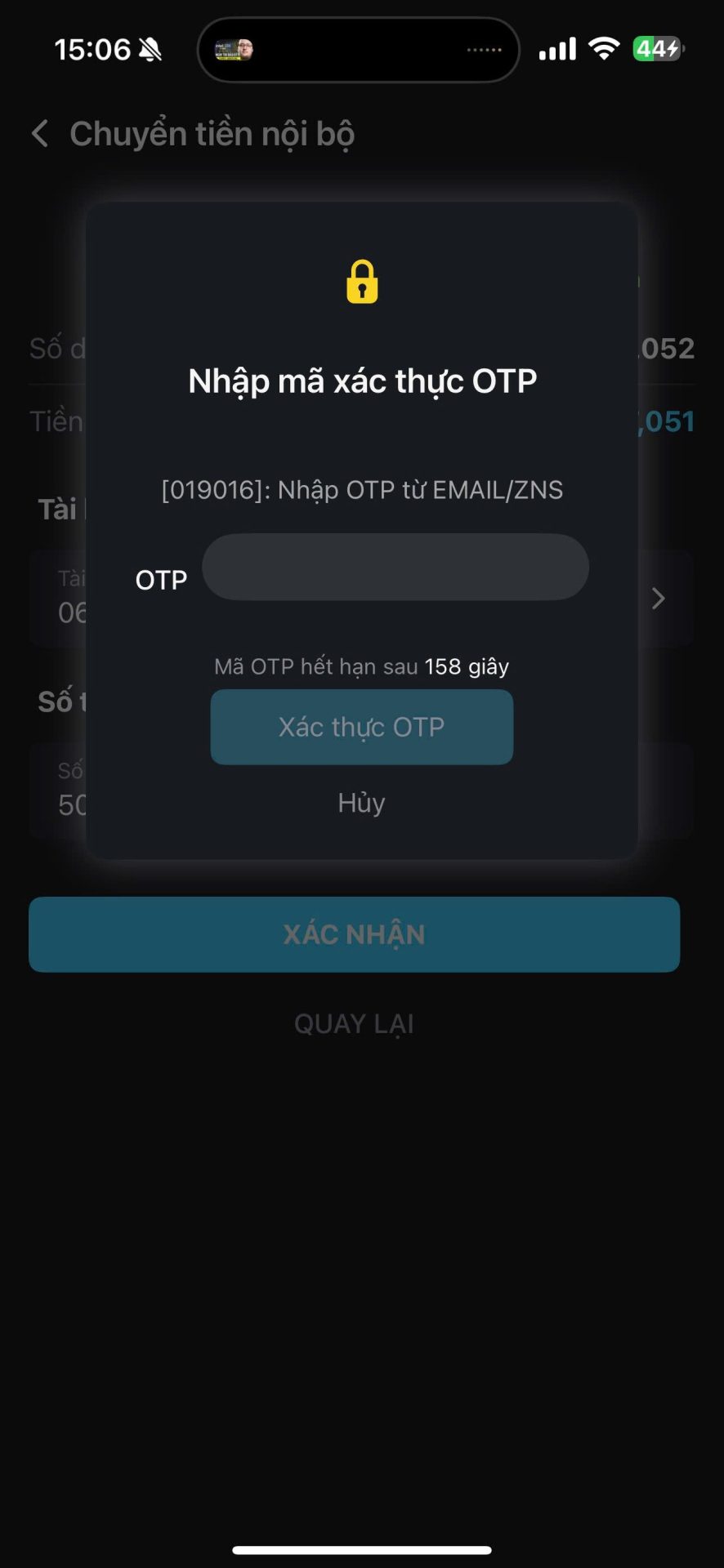 |
Step 4: Enter the OTP sent to your device. |
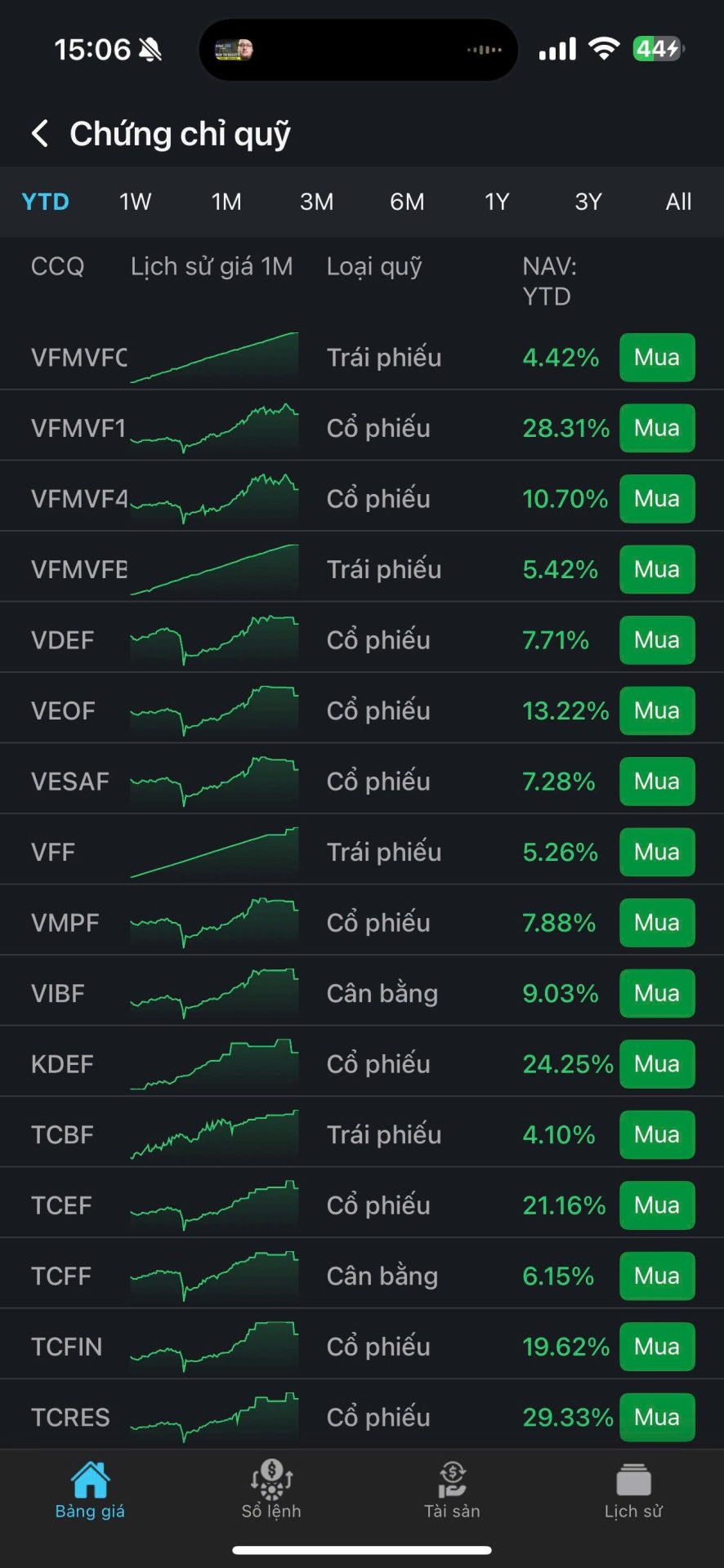 |
Step 5: Select the fund certificate you wish to purchase. |
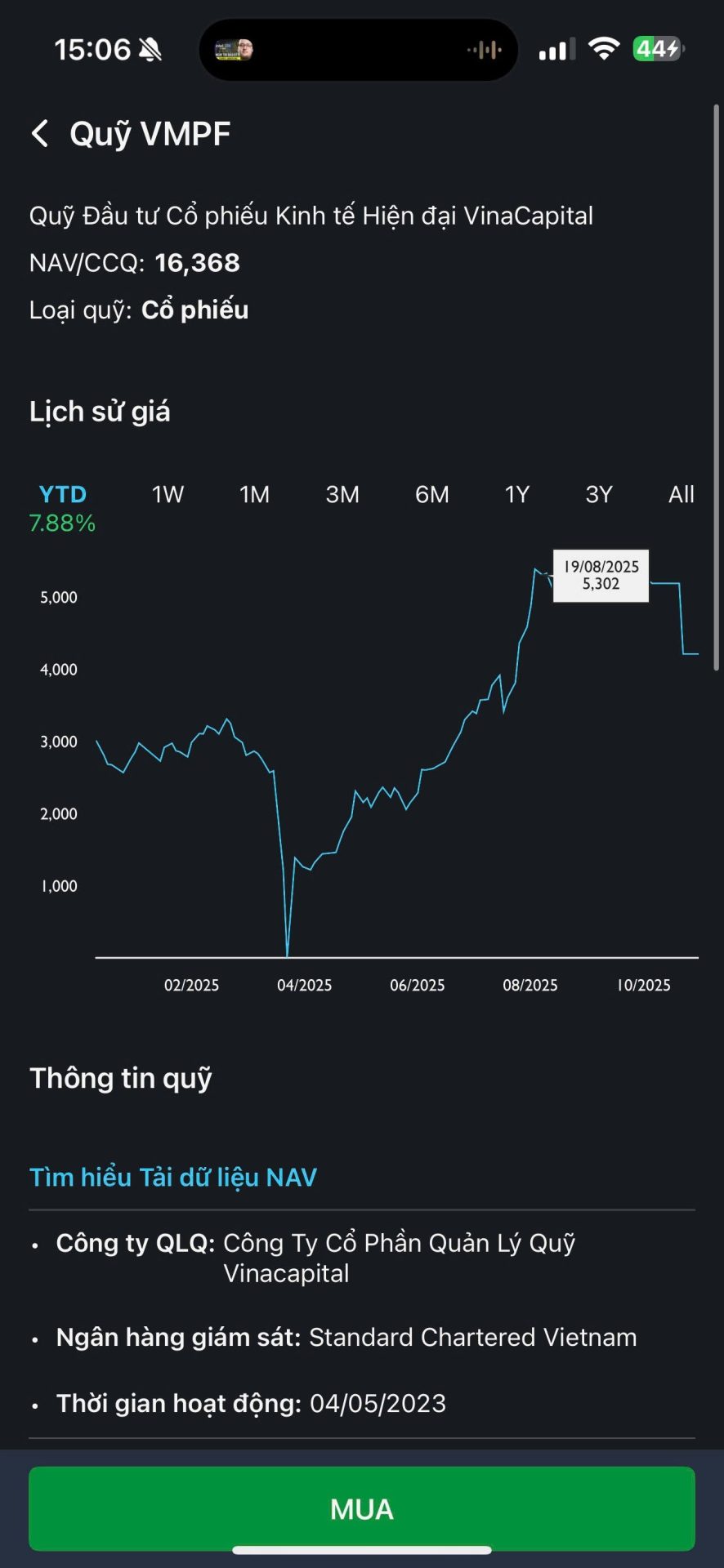 |
Step 6: Tap “Buy.” |
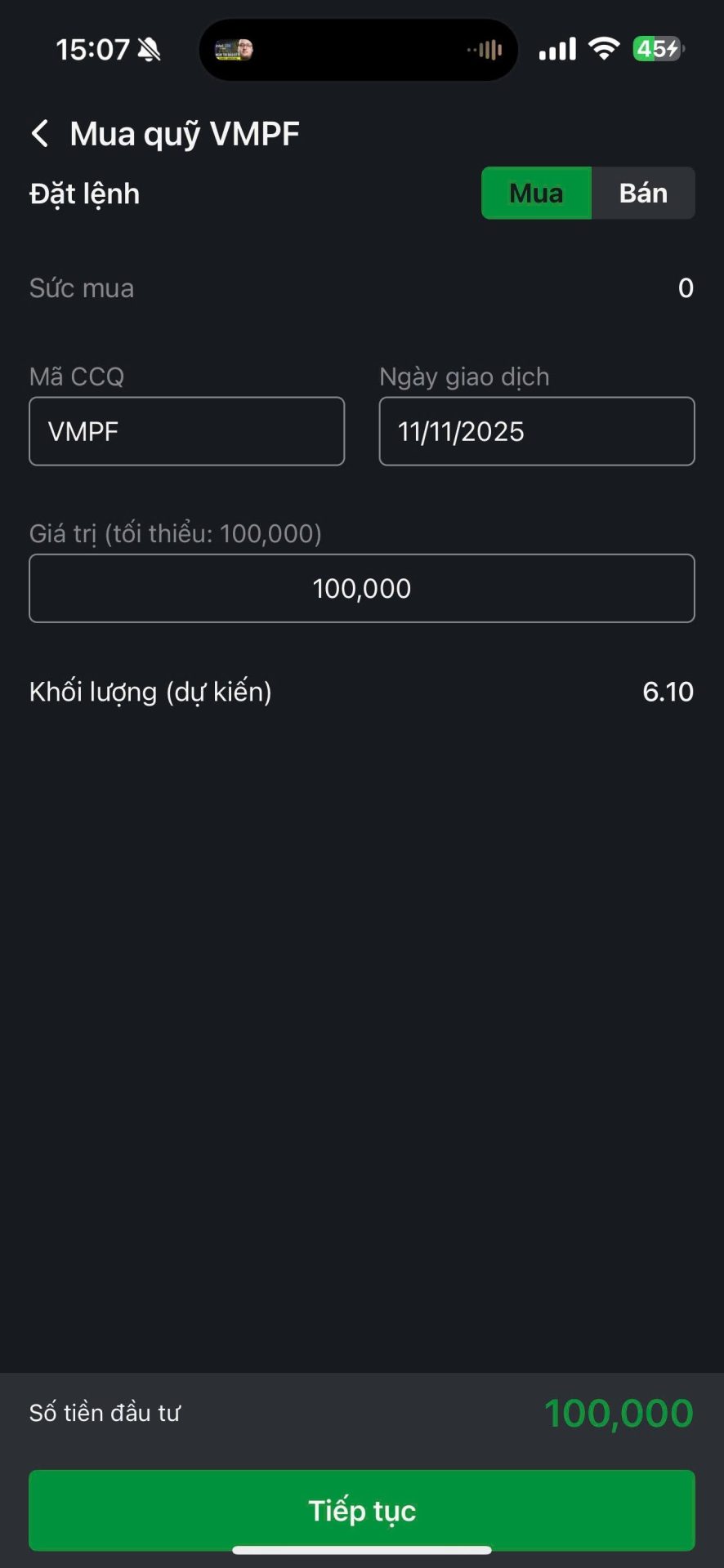 |
Step 7: Enter the amount you wish to invest. |
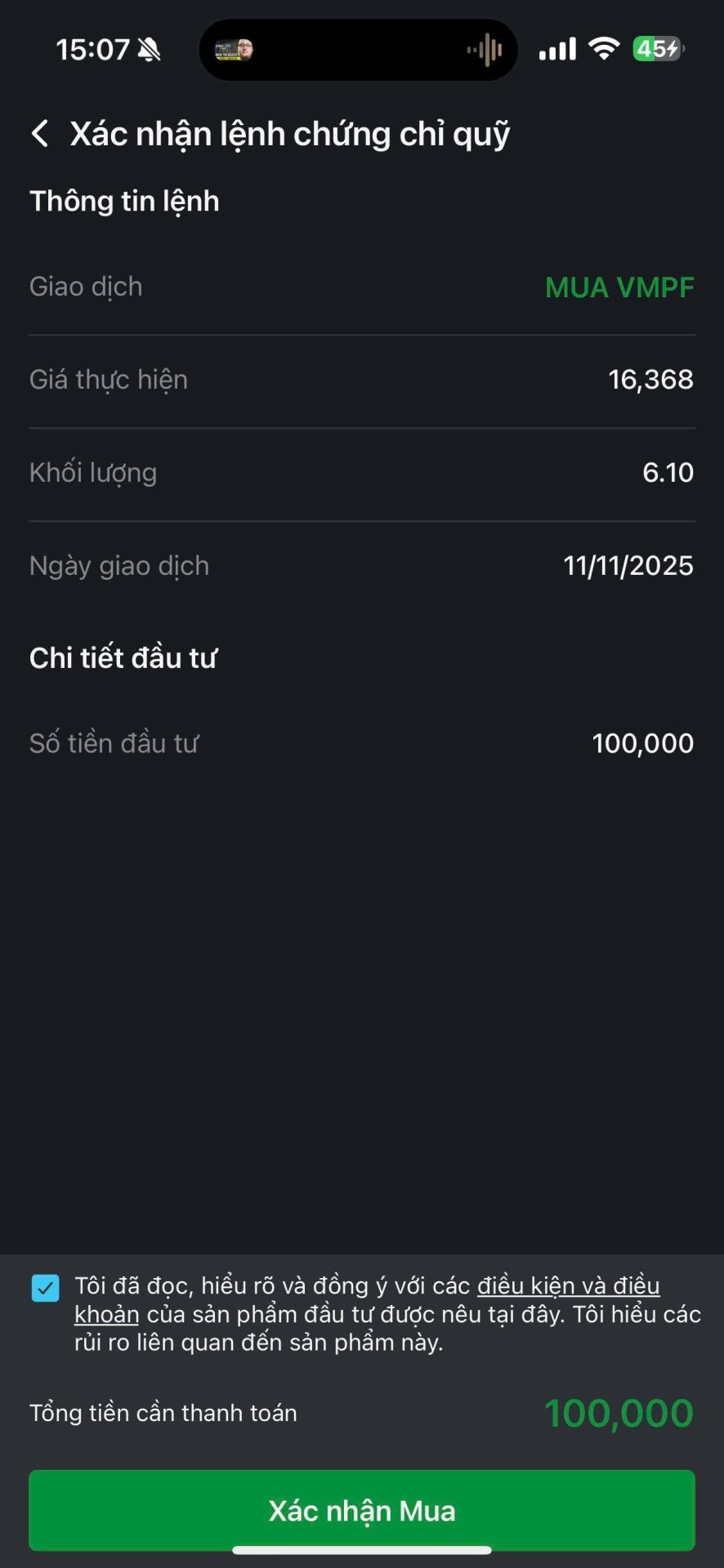 |
Step 8: Read the Terms and Conditions (T&C) and confirm the transaction. |